# About Nighty
## Welcome!
### **What is Nighty, and how do I set it up?**
Nighty is a specialised software tool designed to enhance user experience on Discord. It operates as an advanced bot for a user account, offering users the ability to automate various actions and perform tasks within the Discord platform.
With Nighty, users can enjoy features such as automated message sending, reaction triggers based on specific events or commands, efficient server and channel management, and seamless interaction with external APIs or websites. Nighty serves as a powerful tool to streamline and enhance user interactions within Discord, providing a range of automated functionalities tailored to individual preferences and needs.
To set Nighty up, you can follow the following written steps by our team.
# First Launch
Getting started is a breeze. Follow our simple guide to launch Nighty for the first time!
## Purchase Nighty Key
Purchase a license key at through our official shop or from one of our authorized resellers.
{% hint style="info" %}
To ensure maximum security, it is imperative to save your Nighty key in a safe and protected location. We recommend storing it in a text file (.txt) on a USB or flash drive, or using a dedicated app on your phone's notes for added convenience. Nevertheless, we strongly discourage the use of pen and paper to safeguard your Nighty key, as this approach may lead to potential loss or unauthorised access. Prioritising the safety of your Nighty key is of paramount importance to maintain the integrity of your Nighty account and its associated functionalities.
{% endhint %}
{% hint style="warning" %}
Each license key is intended for a single owner. Official license keys can be purchased from our authorized shop at nighty.one. Reselling keys unofficially is strictly prohibited and may result in key revocation, ensuring a fair and secure environment for all users.
{% endhint %}
***
## Download the launcher
Download the launcher from our official website at . You will be asked for a license key before downloading.
***
## Unzipping and Placing the launcher
Unzip the ***Nighty.exe*** from *Nighty.zip* and run the executable.
Unzip (extract) Nighty.exe from Nighty.zip
***
## Inputting Your License Key
Nighty will prompt you to input your license key upon startup. If you have previously run Nighty on this computer, it will not prompt you again. Simply enter your license key in the provided field and click "Continue."
License Key Window
***
## Connect Nighty to your Discord account
To connect to your account, Nighty offers three login options: ~~**Client Login**~~**, Web Login and Token Login**.
{% tabs %}
{% tab title=" 🔥 Web Login" %}
This option prompts a standard Discord login window, where you can input your Discord credentials or scan a QR code.
Web login window
{% endtab %}
{% tab title=" Token Login" %}
This method requires providing your account token and password. Check our guide on how to obtain your token below.
How to get your Discord token?
1. Login to Discord in a browser.
2. Open developer tools (F12).
3. Open console tab in the developer tools.
4. Paste the code from the codeblock below into the console and hit enter. If you get a pasting error, type in "allow pasting" and click Enter.
5. Copy your token and input into Nighty.
```
let token;
webpackChunkdiscord_app.push([
[Math.random()],
{},
(r) => {
for (let m in r.c) {
try {
const mod = r.c[m].exports;
if (mod && mod.default && typeof mod.default.getToken === 'function') {
token = mod.default.getToken();
break;
}
} catch {}
}
},
]);
console.log(token);
```
{% endtab %}
{% endtabs %}
***
## Creating an App
Nighty relies on **user apps** to execute commands on Discord. During the initial setup, you'll be prompted to create one. Simply enter a name of your choice and click **Create** to proceed. You can change the app name anytime later using the `/appedit` command.\\
Give your App a custom name
***
## **Getting Your Application Token**
Nighty now needs to retrieve your application token. **Do not enter anything manually.** Simply click the **"Get Your Application Token"** button and wait for the window to open.
Now, simply click the **"Reset Token"** button. You may be asked to confirm this by entering your Discord password or 2FA code - do so if prompted. Once completed, wait a few seconds for Nighty to retrieve your application token.
***
## **Authorize Nighty App**
Almost done! Now, authorize the Nighty app by clicking the **"Authorize"** button.
***
## Done!
Congratulations! Nighty is now successfully connected to your account. For any assistance, please refer to our troubleshooting guide or reach out to our dedicated [support team](https://nighty.support/).
# Usage Guide
This page is your go-to resource for navigating and utilizing Nighty effectively.
Let's walk through the initial steps, ensuring a smooth introduction to the world of Nighty on Discord.
Assuming you've successfully connected Nighty to your Discord account, let's delve into the next steps. If you haven't done so yet, be sure to check out our [First Launch](/getting-started/first-launch) guide for a seamless setup experience. Now, let's explore how to make the most of Nighty's features.
***
## Start with `/help`
{% hint style="info" %}
If you can't see commands, reload Discord with CTRL + R or restart the Discord app.
{% endhint %}
In any server, direct message, or group chat, start your Nighty journey with **`/help`**. Nighty uses slash commands, providing full autocompletion on Discord. This command serves as your gateway, displaying Nighty's main commands, neatly categorized for easy navigation.
***
> Please note that this guide is a work in progress, and additional content will be seamlessly integrated soon.
# Changelog
This version is a full recode & revisitation of our previous version (2.2), to bring major performance upgrades and new features.
* Full bot recode
* Updated discord.py-self to latest (2.0 -> 2.1)
* Updated config & data location from the current directory to `%appdata%/Nighty Selfbot`
* This allows Nighty to run from anywhere (fully portable) as well as without administrator
* A new startup from scratch is required (previous config files are not compatible with this version)
* Removed password from config
* Other values that were in config.json have been moved to their appropriate files in the data folder
* To increase efficiency and reduce the amount of "useless" commands, we decided to merge the majority of our commands
* Here are a few examples (full command changes at commands list - coming soon, for now, use ctrl + f on the app or .help):
* Instead of the .customize category, which used to contain commands such as ctitle, ctitlecolor, cimageurl, cdescription, embedcolor, wfooter, wtitle, ... Have all been removed and merged into 1 single command:
* `.theme <"value">`
* Example usage: `.theme embed title "my new embed title"`
* Instead of the .notifications category, which used to contain commands such as roleupdates, nickupdates, friendevents, ... Have all been removed and merged into 1 single command:
* `.notifications `
* Example usage: `.notifications ghostpings on`
* The same goes for toastnotifications, soundnotifications, webhooksettings, stop commands (stopforcenick, stopmimic, stopreactuser, stopdeleteannoy, ...), and many more
* Revisited our remote command executor:
* Now being done seamlessly, as if you were invoking it in the channel
* Remote UI Script available in Community scripts, to execute commands within the UI instead of sending them in a chat
* Revisited text mode
* text mode has been made more customizable than ever, allowing you to change its entire layout and markup for every aspect of the bot (title, prefix, command name, command description, body, footer, ...)
* New mode: silent (`.mode silent`)
* Execute commands without leaving any message behind
* Instead of sending as a message, it will get sent as a notification within the app
* This works for any messages being sent by the bot and works within scripts as well
* Redesigned startup:
* New, quick, and visually pleasing
* The entire setup is now within one window
* No restarts between the processes (license key, discord login, ..)
* Command sorting (`.commandsort `)
* Sort your commands according to your preference:
* `default`: Default command sorting
* `history`: Show last used commands first
* `favorites`: Show favorite commands first
* `alphabetic`: Sort commands alphabetically
* Commands per page (`.commandsperpage `)
* Decide how many commands are displayed per output
* Delete timer seconds are now optional, no seconds given = no delete
* `.deletetimer [seconds]`
* New value for session spoofing (`.sessionspoof `):
* **ps5**: Shows you online on Console
* **Recovery**:
* Friends & Servers restore:
* Due to Discord limitations (captcha & other annoying checks), the process is semi-automated and requires user interaction, such as accepting invites & clicking on "Send Friend Request"
* Requires the Discord client
* Backup & restore favorited GIFs:
* `.backupgifs` & `.restoregifs`
* Added back detailed explanations for each command using .help for text & embed mode
* Improved repeat command (`.repeat [channel]`)
* Directly invokes the previous command instead of resending it as a message
* Optional channel argument to repeat the command in a different channel
* Completely reworked **sharing commands**:
* Shared commands work on a 1-1 endpoint
* Seamlessly and intuitively, as if you were the one invoking them.
* DM logger
* Fixed false positives for message edits when they include embeds or attachments
* Persistent snipe & able to snipe more than one message
* Removed `.customactivity` -> Now RPC
* Improved `.autoslash`
* Re-coded `.cloneserver`:
* Clones the following:
* **text channels**: name, topic, NSFW, slow-mode, position, channel-specific permissions
* **voice channels**: name, position, channel-specific perms, afk-channel
* **roles**: name, permissions, color, separated display, mentionable
* **emojis**
* **Rich Presence**:
* The RPC has been getting major changes, for now, these changes have been made in the back-end and will be applied to the UI very soon
* New values (rpc.json):
* **stream\_url**: Stream URL for the rpc profile (has to be a Twitch or YouTube URL)
* **start & end**: Custom start & end timer
* **start**: \[hours, minutes, days] (for example: \[0, 1, 0] for 1 minute
* **end**: \[hours, minutes, days] (for example: \[0, 1, 0] for 1 minute
* **platform**: Shows your activity being run on a specific platform
* **desktop**: The default platform we have used until now
* **xbox**: Xbox activity
* **samsung**: Samsung Galaxy activity
* **ps4**: PlayStation 4
* **ps5**: PlayStation 5
* Custom Dynamic Values:
* Dynamic bot variable
* Example: `{bot.user.name}` to return your username as a dynamic value
* Ability to register your own, self-made dynamic {values} to the bot using scripts
* `addDRPCValue(value, func)` -> More info & examples will be shared regarding custom dynamic values and how to register them properly
* Dynamic values support on themes (embed & text | for webhooks will come later)
* Scripting:
* ~~await nightySend(ctx, title, description)~~
-> `await ctx.nighty_send(content: str, title: Optional[str], file: Optional[discord.File])`
* Example usage: `await ctx.nighty_send(content="Hello world")`
* `await ctx.nighty_help(commands: list[Command], title: Optional[str])`
* Example usage to show all commands: `await ctx.nighty_help(title="All commands", commands=bot.commands)`
* `await ctx.nighty_command_help(command: Command)`
* Get help with a command
* user.avatar will return default\_avatar instead of None when the user has no avatar
* UI Scripts: toggle checkboxes can be updated to be checked on load, and selection values can be updated in real time. The UI scripting API documentation will be updated accordingly
* Create & add your self-made dynamic values using scripts
# The application did not respond / Unknown Integration
Use this guide to resolve slash command issues related to "This or unknown integration errors.
Press **`Ctrl + R`** to refresh Discord and resolve command response issues. That's it.
# Common solutions to all issues
Facing issues with Nighty? Try these general solutions first, applicable to various problems.
{% hint style="info" %}
## Important Information for Using Nighty on a VPS
To successfully run Nighty on your VPS, please ensure that you install Microsoft WebView2 from our guide [here](/troubleshooting/app-is-just-a-white-box-ui-not-appearing-looking-weird).
{% endhint %}
1. **Disable your antivirus**\
Disable Windows Defender Real-time protection), including any third-party programs like Malwarebytes, to prevent any potential false positive detections during the installation process. This step helps ensure that Nighty's files are not mistakenly flagged as malicious.
2. **Delete the main folder**
* Press `Win + R` on your keyboard.
* Type `%appdata%/Nighty Selfbot` and press Enter.
* Delete everything inside that folder.
* Restart Nighty.
3. **Disable Firewall**\
If you are encountering difficulties launching the bot, try temporarily disabling your firewall. Firewalls may sometimes block connections and prevent proper execution. Ensure that Nighty has the necessary permissions to access the network.
4. **Update Windows**\
Ensure your operating system is up-to-date by installing the latest Windows updates. Outdated system components may contribute to compatibility issues. Visit the Windows Update settings and download any available updates to enhance system stability.
5. **Verify Nighty.exe Placement.**\
Double-check that you have correctly extracted 'Nighty.exe' from 'Nighty.zip' and placed it in the 'C:/Nighty' directory. A misplaced or missing executable file can prevent the bot from launching.
6. **Update Nighty**\
Ensure you have the latest version of Nighty. Visit [nighty.one/get-links](https://nighty.one/get-links) to redownload the launcher. Follow the [First Launch](/getting-started/first-launch) tutorial on the documentation page for a step-by-step guide to update Nighty to its most recent version. Keeping the bot updated can resolve compatibility issues and improve overall performance.
7. **Resource management**\
Close any unnecessary programs or processes to free up system resources and improve performance.
8. **Restart your computer**\
To clear any temporary files or processes that may be interfering with the application launch. Often this solution works.
9. **Check Key Status**\
Verify if your key is valid. Follow the guide [here](/troubleshooting/flagged-key).
# Unable to launch
This section is designed for users who are unable to run the program, experiencing instant crashes or errors during launch.
## Error: Unhandled exception in script
Failed to execute script 'Nighty' due to unhandled exception: (...)
If you encounter this error, please follow the [common solutions guide](/troubleshooting/common-solutions-to-all-issues).
# App is just a white box, UI not appearing / looking weird
Nighty relies on WebView2 technology to display its Graphical User Interface (GUI). If you encounter an issue where the app is just a white box, and/or the UI is not appearing/looking weird, follow these steps to troubleshoot and resolve the problem.
### Installing WebView2
Nighty requires *Microsoft WebView2*. If it is not installed on your computer or Virtual Private Server, follow these steps:
1. Download the [Evergreen Standalone Installer X64 (click)](https://msedge.sf.dl.delivery.mp.microsoft.com/filestreamingservice/files/dad8096c-1b0c-40c5-9b1c-415164028ec9/MicrosoftEdgeWebView2RuntimeInstallerX64.exe).
2. Install the downloaded installer.
3. Reboot your PC or server.
4. Try running Nighty again.
If the issue persists, it may be due to an incorrect version of WebView2 installed. Follow the steps below to fix this:
#### Verifying and Installing the Correct WebView Version
1. Open PowerShell as an administrator.
1. Press the Windows key.
2. Search for "Windows PowerShell."
3. Right-click on "Windows PowerShell" and select "Open as administrator."
2. Paste the following command into the PowerShell terminal and press Enter.\
`cd C:\Program Files (x86)\Microsoft\EdgeWebView\Application\1*\Installer`\
\
If you got an error, try executing this command instead:\
`cd C:\Program Files\Microsoft\EdgeWebView\Application\1*\Installer`
3. After that, paste the following command and press Enter:\
`.\setup.exe --uninstall --msedgewebview --system-level --verbose-logging --force-uninstall`
4. Reboot your PC.
5. Install the correct version of WebView2 by following the steps mentioned in the [Installing WebView 2 section](#installing-webview-2) above.
# Retrieving License Key
Forgot your license key? No worries, follow these steps to retrieve it.
### **Retrieving License Key from Your PC:**
1. Press Win+R
2. Type `%appdata%/Nighty Selfbot`, and press OK.
3. If successful, open *auth.json* with *Notepad* (Right click - open with - Notepad).
4. Locate your license key in auth.json and copy it.
### Retrieving License Key from Order Email:
1. Search your email inbox for the keywords "Nighty," "Shoppy," or "Sellix"
2. Locate your license key in order confirmation email.
### **Retrieving License Key via Nighty Support:**
1. Head to the [Support Portal](https://nighty.support/).
2. Initiate a new support request.
3. Include as much information as possible such as Reseller or Seller name, Date of purchase, Payment method, Email address, Discord ID or name+tag, and email confirmation screenshot.
Nighty Support Team will assist you in retrieving your license key promptly.
# Flagged key
If you suspect your key was flagged, follow these steps.
Flagging is part of our continued effort to maintain the integrity and safety of our users. To unflag your key and restore full access to Nighty, you must submit a verification request through our Support Portal.
### **Checking if key is flagged**
1. Visit [Get Links](https://nighty.one/get-links).
2. Input your license key, click "Show me the links."
3. If links appear, your key is fine. If flagged, follow the guide below.
### **If Key is Flagged**
1. Go to the [Support Portal](https://nighty.support/).
2. Open a new support request, select "Flagged Key category."
3. Provide proof of purchase: confirmation email screenshot, transaction screenshot, and extra purchase details (Reseller, Date, Payment method, Email, Discord ID).
# Rich Presence doesn't show up
If your Rich Presence isn't appearing in Discord, follow these steps to troubleshoot:
1. **Check Your Discord Status**\
Make sure your Discord status is set to **Online / Do Not Disturb / Idle**. Rich Presence won’t show if you're **Invisible** or **Offline**.
2. **Verify Custom Image URLs**\
If you're using custom images (large/small), upload them to [Imgur](https://imgur.com/).\
After uploading, **right-click the image → Open in new tab → Copy the URL** from the address bar. It starts with i.imgur and ends with image extension (eg. .jpg/.png).
3. **Enable Activity Settings in Discord**\
Go to **User Settings → Activity Privacy** and **enable all options**.
4. **Enable Server-Specific Activity Privacy**\
In each server where you want Rich Presence visible:\
**Click the server name (above the channel list) → Privacy Settings → Enable both options.**
#### Still Not Working?
Open a support ticket at [nighty.support](https://nighty.support/) and attach the following files:
* `profile.json`
* `presets.json`
You can find them here:\
Press **Win + R →** type `%appdata%/Nighty Selfbot/data` → **OK**
# Discord MFA Setup
Some things you do on Discord need an extra security check before they go through. Depending on how your account is set up, that check is either your **Discord password** or a **2FA code** (the 6-digit code from an authenticator app like Google Authenticator).
Nighty doesn't know your password or your 2FA code, so it can't pass that check on its own. To use the features that need it, you have to give this information to Nighty once. This guide shows you how.
{% hint style="danger" %}
## Before you start (please read)
### If you already use 2FA (an authenticator app) on your Discord account:
To set 2FA up with Nighty, you first have to **turn 2FA off on Discord and turn it back on again**. This is the only way to get the special key Nighty needs.
Turning 2FA off and on again will **change your Discord token**, which means Nighty will log you out and ask you to log back in. That's normal and expected.
* Set aside about **5 minutes** for this.
* Follow the steps exactly as written, in order.
{% endhint %}
### Which section do I follow?
**You only use a password** (no authenticator app / no 2FA) → follow the **Password Only** section below.
{% content-ref url="/pages/b297d58ca5c19557acaf4ac0df597bd8f7ea625e" %}
[Password Only](/guides-and-tutorials/discord-mfa-setup/password-only)
{% endcontent-ref %}
**You already use 2FA** (an authenticator app) → go to the **2FA Setup** section below.
{% content-ref url="/pages/a412f27ec637eb4bc2bbb99ee2b2526b3f9cc620" %}
[Password + 2FA (Authenticator app)](/guides-and-tutorials/discord-mfa-setup/password-+-2fa-authenticator-app)
{% endcontent-ref %}
Not sure? Start with [**Password Setup**](/guides-and-tutorials/discord-mfa-setup/password-only). If Nighty asks you for a 2FA code at any point, that means you have 2FA enabled, so jump to the **2FA Setup** section instead.
# Password Only
Use this if you sign in to Discord with just a password (no authenticator app).
{% stepper %}
{% step %}
## Open the Modules tab
In Nighty, open the **Modules** tab.
{% endstep %}
{% step %}
## Open Multi Factor Authentication
Click **Multi Factor Authentication (MFA)**.
{% endstep %}
{% step %}
## Start configuration
Click **Start Configuration**.
{% endstep %}
{% step %}
## Enter your Discord password
Type in your **Discord password**.
{% hint style="warning" %}
Type it carefully. Nighty does **not** check whether it's correct, so a typo here will cause problems later.
{% endhint %}
{% endstep %}
{% step %}
## Finish
Click **Finish**.
You should see **Status - Configured**. You're done!
{% endstep %}
{% endstepper %}
{% hint style="info" %}
**Do you see a "Next" button instead of "Finish"?**
If Nighty asks you to enter a 2FA code, that means you have 2FA enabled on your account. Stop here and follow the [**2FA Setup**](/guides-and-tutorials/discord-mfa-setup/password-+-2fa-authenticator-app) section below instead.
{% endhint %}
# Password + 2FA (Authenticator app)
Use this if you already have 2FA (an authenticator app) turned on for your Discord account.
As mentioned earlier, you first need to remove 2FA from Discord and add it back, then log in to Nighty again. Follow every step in order.
{% stepper %}
{% step %}
### **Close Nighty.**
Close Nighty.
{% endstep %}
{% step %}
### **Open your Discord MFA settings.**
Go to **Account** → **Password & Security**.
Click **Multi-Factor Authentication**.
{% endstep %}
{% step %}
### **In the Authenticator App section, click Remove and confirm.**
{% endstep %}
{% step %}
### **Open your authenticator app (for example, Google Authenticator) and delete your Discord account from it.**
{% hint style="danger" %}
## Double check if 2FA was removed from your Discord account.
You may be locked out of your Discord account if you remove 2FA from your authenticator app before disabling it on Discord.
Before removing it from your authenticator app, verify in Discord that authentication is password-only and MFA is disabled.
{% endhint %}
Make sure 2FA is removed from your Discord account and remove it from your Authenticator app as well - to avoid mistakes in the future.
{% endstep %}
{% step %}
### Add 2FA back and save your key
Back in Discord, click **Enable Authenticator App**.
Find the option for **manual entry** (the text key) and **copy that key into Notepad**. Keep Notepad open, you'll need this key soon.
### ⚠️ Save the manual entry code! You will need it soon.
Now scan the QR code with your authenticator app to add Discord back to it (standard procedure).
Finish the process on Discord by entering the 6-digit code from your authenticator app when it asks. Click Activate to Activate 2FA on your Discord account.
{% hint style="warning" %}
### Only contine to the next step if you succesfully activated 2FA on your Discord account and saved your 2FA key!
{% endhint %}
{% endstep %}
{% step %}
### Log back in to Nighty
Because you turned 2FA off and on, your Discord token changed. Nighty will notice this and ask you to log in again.
Open **Nighty**.
Log in with your preferred method.
* If you're not sure how, see the [**First Launch**](/getting-started/first-launch) guide.
\ Note: If you don't want to create a new app simply close the Create Application popup and click on your previous application.
{% endstep %}
{% step %}
## Open the Modules tab
In Nighty, open the **Modules** tab.
{% endstep %}
{% step %}
### Open Multi Factor Authentication
Click **Multi Factor Authentication (MFA)**.
{% endstep %}
{% step %}
### Start configuration
Click **Start Configuration**.
{% endstep %}
{% step %}
### Enter your Discord Password
Type in your **Discord password** and click Next.
{% hint style="warning" %}
Type it carefully. Nighty does **not** check whether it's correct, so a typo here will cause problems later.
{% endhint %}
{% endstep %}
{% step %}
### Enter your 2FA 28-digit key
Remember the Manual entry 2FA code you saved eariler in [step 5](#save-the-manual-entry-code-you-will-need-it-soon)?
Copy it to clipboard now and paste to Nighty and click Finish.
Screenshot of the code from Step 5.
Now paste it into Nighty and click Finish.
{% endstep %}
{% step %}
### Confirm with 6-digit code from your Authenticator app
Open your Authenticator app and enter your 6-digit code (the same you normally use to login to Discord)
Click **Verify Code**.
You should then see **Status - Configured**. You're done!
{% endstep %}
{% endstepper %}
## After configuring:
* **You can close Notepad** and delete the key from it. You should not share it with anyone.
# Quickstart Guide
We strongly recommend reading the full documentation, but if you’re short on time, here’s a quick-start guide to get you up and running.
A custom feature is one sentence: **when this happens, check a few things, then do something.**
## The five parts
Every feature is built in this order, and it runs in this order too:
If any step says no, the feature stops there and nothing happens.
## Six things to know before you start
**1. Every** [**event**](/custom-features-tab/understanding-events-and-parameters) **brings information with it.** A new message gives you the message, who sent it (user or member), the channel, the server (guild). You build everything out of these [**parameters**](/custom-features-tab/understanding-events-and-parameters).
**2. "Guild" means "server."** Same thing.
**3. Not everything is always there.** DMs have no server and no member. Features that work in servers can silently do nothing in DMs.
**4. Leave** [**safe mode**](/custom-features-tab/safe-mode) **ON.** New features have it on by default. Your feature runs for real but stops before doing anything, and tells you what it *would* have done. Turn it off only once you've watched it behave correctly.
**5. Add the "Ignore self" or "Only Self" filter.** Always. Without it, a feature that replies to messages will reply to its own reply, forever.
**6. Keep the default limit of 1 run per second.** It's your brake. Only remove it if you know exactly why.
## Your first feature, in 2 minutes
{% stepper %}
{% step %}
## Pick the event **New Message**
{% endstep %}
{% step %}
## Add the filter **Ignore self**
{% endstep %}
{% step %}
## Add a condition
Message contains `hello`.
{% endstep %}
{% step %}
## Add a condition
Message mentions me
{% endstep %}
{% step %}
### Keep "if met, just continue" and "otherwise, stop" as is
Do not change anything there, keep them collapsed.
{% endstep %}
{% step %}
## Add the action
**Reply** → `Hi there!`
{% endstep %}
{% step %}
## Test in safe mode
Go to the Overview Tab.
Ask your friend to say "hello" and ping you (for example `hello @you` on Discord.
If a notification appears saying actions were about to run - it works.
Turn safe mode off and try it for real, again.
{% endstep %}
{% endstepper %}
## When something goes wrong
**Check the feature's log first.** Nearly every problem writes its reason there: which value was empty, which ID couldn't be found, which action failed.
The three most common causes:
| It's… | Look at |
| --------------------- | ---------------------------------------------------------------------------------------- |
| Doing nothing | A filter or condition is blocking it - or it's a DM and you used a server-only parameter |
| Doing too much | Conditions too loose, or a missing **Ignore self** |
| Doing the wrong thing | A reference is pointed at the wrong parameter |
## A rules that will save you
{% hint style="danger" %}
**Test in safe mode. Every time.**
**If safe mode is spamming notifications, your feature is broken.** Fix it before turning safe mode off - that spam would be going to Discord.
{% endhint %}
# Understanding Events and Parameters
## Discord is constantly sending you events
Let's start with something you do every day.
You open a server, click on **#general**, and you see people chatting. Messages appear on your screen the moment someone sends them.
Have you ever wondered *how* they get there?
Here's what actually happens. Every time someone sends a message, Discord sends a small notification to your Discord app that says, roughly:
> "Hey - something just happened. A new message was created. Here are the details."
That notification is called an **event**. Your Discord app receives it, reads the details, and draws the message on your screen.
**An event is simply: *****something happened*****, plus *****the details about it*****.**
You never see events yourself - they happen silently in the background, hundreds of times a day. But they are always there.
### Events are not just messages
New messages are the most obvious example, but Discord sends an event for almost everything that happens around your account:
* A message is sent, edited, or deleted
* Someone reacts to a message with an emoji
* A member joins or leaves a server
* A role is given to or taken from a member
* Someone changes their nickname
* A channel is created, renamed, or deleted
* Someone joins or leaves a group DM
* A user changes their username or avatar
Every single one of those is an event.
### Where Nighty comes in
Nighty listens to the exact same events your Discord app does.
**Custom Features let you say: "When THIS event happens, do THAT."**
That's the core idea. Everything else in this documentation is just detail on top of it.
{% hint style="info" %}
**Important:** a Custom Feature does nothing until its event happens. If you build a feature that reacts to new messages, it sits quietly doing nothing until somebody sends a message. This is normal - it's not broken.
{% endhint %}
## Every event carries parameters
An event isn't just a signal saying "something happened." It also carries **information about what happened**.
Think of an event as a **delivered package**. The package tells you *something arrived*. But what's useful is **what's inside the box**.
The things inside the box are called **parameters**.
When someone sends a message, the **New Message** event arrives carrying these parameters:
| Parameter | What it is |
| ----------- | ----------------------------------------------------------------- |
| **message** | The message itself |
| **user** | The person who sent it - you, a friend, a stranger, or a bot |
| **channel** | Where it was sent - a text channel like #general, or a DM |
| **guild** | The server it was sent in *(only if it wasn't a DM)* |
| **member** | The sender, as a member of that server *(only if it wasn't a DM)* |
| **me** | You - your own Discord account. Always available |
Those are the pieces of information Nighty hands you to work with.
{% hint style="info" %}
We say **Guild** where Discord's interface says **Server**. They mean exactly the same thing. Discord's own developers call servers "guilds," and Nighty follows that. Whenever you read **guild** in Nighty, think **server**.
{% endhint %}
## A parameter is not one value - it's a container of details
This is the part that clicks for most people once they see it.
A parameter isn't a single piece of text. It's a **container** holding many details inside it.
Look at the message above on your screen right now. Discord is showing you several separate details at once:
* The **avatar** on the left (User → Avatar)
* The **name** in bold (User → Name)
* The **content** of the message (Message → Content)
Discord got all of those out of the parameters that came with the event - and you can get them out too.
You'll see these details written in blue boxes in the Custom Features Tab, like this:
You never have to type them by hand - the editor gives you an Expression Builder and inserts them for you. Read it as **"the `content` detail, taken from the `message` parameter."**
{% hint style="success" %}
**The mental model:** the **event** tells you *what happened*. The **parameters** tell you *who and where and what was involved*. The **details** inside each parameter are the actual values you use.
{% endhint %}
## Parameters that sound the same but aren't
Some parameters have similar names and it's easy to mix them up. This section is worth reading twice - most beginner confusion lives right here.
### `user` vs `member` - the important one
Both refer to **the same person**. The difference is *which side of them* you're looking at.
**`user` is the general Discord account.** Every human (and bot) on Discord is a user. This is who they are everywhere, across all of Discord. Their username, their avatar, their account age. **A `user` is always available**, no matter where the event happened.
**`member` is that same person *****inside one specific server*****.** A member is a user who has joined a server, and being a member comes with server-specific things: their nickname on that server, the roles they have there, when they joined, and what can be done to them there - kick, ban, timeout, add role, remove role.
{% hint style="warning" %}
**`member` only exists when the event happened inside a server.** If someone sends you a direct message, there is no server involved - so there is **no member**, only a **user**.
{% endhint %}
An example. Imagine your friend Anna:
| | As a `user` | As a `member` |
| ------------------ | ------------------------- | ------------------------------------- |
| Who | Anna, the Discord account | Anna, in *this particular server* |
| Username | `annabanana` | *(same — it comes from the user)* |
| Nickname | ❌ doesn't exist | ✅ "Anna 🌸" - but only on this server |
| Roles | ❌ doesn't exist | ✅ Moderator, Verified |
| Can you kick them? | ❌ no such thing | ✅ yes, from this server |
| Available in a DM? | ✅ always | ❌ never |
Anna is one person. In a server she's both a user *and* a member. In your DMs she's only a user.
**How to choose:**
* Want their username, avatar, ID, or an @mention? → use **`user`**
* Want their nickname, roles, join date, or to kick/ban/timeout them? → use **`member`**
### `channel` vs `server_channel` vs `group_channel`
All three are places where messages live. They differ in *what kind* of place.
| Parameter | What it means | Works in |
| ------------------- | ------------------------------------ | ------------------------------- |
| **channel** | Any channel at all - the general one | Server channels, DMs, group DMs |
| **server\_channel** | A channel that belongs to a server | Servers only |
| **group\_channel** | A group DM with several people | Group DMs only |
`channel` is the safe general choice. Use `server_channel` when you need something that only server channels have - a topic, a category, server-specific settings.
### `message` vs `message_before_edit` vs `message_replied_to`
These show up on message events and each points at a *different* message:
| Parameter | Which message it is |
| ------------------------- | -------------------------------------------------------------- |
| **message** | The message the event is about |
| **message\_before\_edit** | What that message looked like **before** it was edited |
| **message\_replied\_to** | The **older message** this one is replying to, if it's a reply |
So on a **Message Edit** event, `message` is the new version and `message_before_edit` is the old version. Comparing the two is how you build something like an edit-logger.
### "before" and "after" parameters in general
Whenever something *changes*, Nighty gives you both versions, so you can compare them:
* **Nickname changed** → `old_nick` and `new_nick`
* **Channel renamed** → `old_name` and `new_name`
* **Channel topic changed** → `old_topic` and `new_topic`
* **Member changed somehow** → `member_before_update` and `member`
* **User changed somehow** → `user_before_update` and `user`
### `me` - always there
Every single event carries a `me` parameter: **your own Discord account.**
It doesn't matter what happened or where - `me` is always available. Use it when you need your own name, avatar, status, friend count, or server count.
## Not every parameter is available every time
This is the number one reason a feature "doesn't work" for beginners.
**The parameters you get depend on where the event happened.**
Compare the same New Message event in two places:
**A message in a server's #general:**
✅ message ✅ user ✅ channel ✅ guild ✅ member ✅ me
**The exact same message, sent as a DM:**
✅ message ✅ user ✅ channel ❌ guild ❌ member ✅ me
There's no server, so there's no `guild` and no `member`. They simply aren't in the box.
Some parameters are conditional in other ways too. `message_replied_to` only exists if the message is actually a reply to something.
{% hint style="info" %}
**Rule of thumb:** if a feature works in servers but seems to do nothing in DMs, you're almost certainly using `guild` or `member` somewhere. Switch to `user` and `channel`, which always exist.
{% endhint %}
### Special events
These two are different - they don't come from Discord at all.
| Event | Fires when |
| ------------------ | ------------------------------------------------------------------------------------------------------- |
| **Repeat Action** | On a timer you choose. "Every 60 seconds", "every 10 minutes." Nothing has to happen on Discord at all. |
| **Custom Feature** | When *another* Custom Feature triggers it on purpose. You decide which parameters get handed over. |
**Repeat Action** is for anything you want to happen on a schedule - post a message every hour, check something regularly, send yourself a reminder.
**Custom Feature** lets you split a big automation into smaller reusable pieces, and have one call another. You'll get a full page on this later.
*(And remember: every event above also carries **me**.)*
# Custom Parameters
On [Understanding Events and Parameters Page](/custom-features-tab/understanding-events-and-parameters) you learned that every event hands you a set of parameters automatically. But sometimes the thing you need simply isn't one of them.
**Custom parameters let you add your own.**
## When you need one
Here's the clearest example.
You want to post an automated message in a specific channel every hour. So you pick the **Repeat Action** event… and you have nothing to work with. Repeat Action isn't triggered by anything on Discord - nobody sent a message, nobody joined a server - so there's no `channel`, no `user`, no `guild`. The event carries no parameters at all.
But you *need* a channel. Specifically, the one channel you want to post in.
That's what a custom parameter is for: **you tell Nighty which channel you mean, and it goes and gets it for you.**
The same applies any time you need something the event didn't hand you:
* Post in a **different** channel than the one the event happened in
* Check a role in **another** server
* Read a specific pinned message that has nothing to do with the current event
* Look up a specific person who isn't involved in what just happened
## Adding one
You add custom parameters in the **parameters** section of your feature. The popup asks you for a few things:
{% stepper %}
{% step %}
## The type
What kind of Discord thing is it? Your choice here decides which IDs Nighty needs from you.
{% endstep %}
{% step %}
## A name
This is how you'll refer to it everywhere else in the feature, so make it obvious to your future self. `general_channel` is good. `chan2` is not.
{% endstep %}
{% step %}
## A description (Refers To)
What this parameter is for. You'll thank yourself in three months.
> **Example**
>
> Name: `general_channel`\
> Refers to: *the channel I want to send automated messages in*
> {% endstep %}
{% step %}
## Availability
*When* Nighty should go and fetch it. This needs its own explanation - see [Availability — when Nighty goes and gets it](#availability--when-nighty-goes-and-gets-it).
{% endstep %}
{% endstepper %}
## How a parameter is actually obtained
To understand availability, you first need to know what "obtaining" means.
**Discord doesn't tell your app everything up front.**
When you launch Discord - or Nighty - it does **not** download every member of every server, every channel, and every message. That would be enormous. Instead it starts with very little and **learns as it goes**:
* Someone sends a message → now it knows about that person and that channel
* You open a channel → now it knows that channel and the recent messages in it
* You scroll the member list → now it knows those members
Everything it has learned is kept in a **cache** -a short-term memory of things it has seen recently.
So when your feature says *"give me the channel with this ID"*, one of two things happens:
| Situation | What happens |
| -------------------------- | ------------------------------------------------------------------------------------------------------------------- |
| ✅ **Already in the cache** | Instant. Nighty already knows it. Costs nothing. |
| ⏳ **Not in the cache** | Nighty has to **ask Discord**: *"tell me about the channel with this ID."* That's a real request over the internet. |
That second case is the important one. Asking Discord:
* **takes time** - it's a round trip to Discord's servers
* **counts against your rate limits** - Discord only lets you ask so many questions so quickly
None of this is a problem when it happens occasionally. It becomes a problem when it happens on **every single message in every server you're in**.
Which is exactly what availability controls.
{% hint style="warning" %}
**Wrong IDs get given up on.** If Nighty fails to fetch the same ID **3 times**, it stops trying that ID entirely and your parameter will just be empty from then on. This protects you from a typo generating endless failed requests. If you fix a wrong ID, **restart Nighty** so it forgets the failures and tries again.
{% endhint %}
## Availability - when Nighty goes and gets it
Availability is the point in your feature where Nighty asks Discord for the parameter. There are three choices:
| Setting | Fetched | Usable in |
| -------------------------------------- | -------------------------------------------------------------- | ----------------------------------------- |
| **Everywhere** | Fetched as soon as the event fires, on **every** event, always | Everything (Filters, Conditions, Actions) |
| **Conditions and actions** | Only if your filters passed | Conditions and actions |
| **Actions** (final actions block only) | Only if your filters **and** conditions passed | Actions only |
Think of it as three gates. The later you set it, the more events have already been thrown away before Nighty bothers to fetch anything.
### Why "as late as possible" is the rule
Picture a feature on **New Message** in a busy server. A thousand messages an hour come through. Your filters and conditions narrow that down to the five you actually care about.
| Availability | Requests to Discord per hour |
| ------------ | ------------------------------------------------------------- |
| Earliest | **1000** - one for every message, even the 995 you threw away |
| Latest | **5** - only the ones that got all the way through |
Same feature, same result, 200× less work.
{% hint style="success" %}
**The rule: pick the latest option that still works.**
If you only use the parameter in your actions, choose **actions only**. If a condition needs to check it, choose **after filters**. Only choose the earliest option if you genuinely have no other choice.
{% endhint %}
{% hint style="info" %}
In reality there are some safety checks behind the scenes not allowing Nighty to make that many requests to Discord, but you should still use the "as late as possible" principle.
{% endhint %}
### When you *do* need it earlier
Move it earlier only when something earlier in the chain needs it:
* **A condition uses it** → it must be fetched **after filters** at the latest
* **Nothing else uses it** → **actions only**
There's one thing custom parameters can **never** be used for, no matter what you pick: **filters**. Filters run before any custom parameter has been fetched, so they can only use the event's own built-in parameters.
## Worked examples
### Automated hourly message in one channel
* Event: Repeat Action
* Custom parameter: type **Channel**, name `announcement_channel`, the channel's ID
* Availability: **actions only** - nothing else needs it
* Action: send a message to `announcement_channel`
### Log deleted messages to a private channel
* Event: Message Delete
* Custom parameter: type **Channel**, name `log_channel`, your private channel's ID
* Availability: **actions only**
* Action: send the deleted message's details to `log_channel`
Notice the pattern: whenever the parameter is only used at the very end, it's set to **actions only**. That's the default you should reach for.
## A note on the Custom Feature event
There's one case where a custom parameter arrives **without** being fetched at all: the **Custom Feature** event, where another feature hands parameters over to this one directly.
In that case the thing has already been loaded by the feature that sent it, so there's no ID to provide and no request to Discord.
# Execution Limits
## Why limits exist
Remember from [Events and Parameters Page](/custom-features-tab/understanding-events-and-parameters): events fire constantly. A busy server can produce hundreds of messages a minute, and **every single one** of them wakes up your feature.
Without a limit, a feature that replies to messages would reply to *all of them*, as fast as they arrive. That's how people get rate-limited by Discord or spam a channel by accident.
**Execution limits are your safety brake.** They cap how often a feature is allowed to actually do something.
Nighty gives you two kinds:
| Kind | Question it answers |
| -------------------- | --------------------------------------------------------------------------------------- |
| **Global limit** | How often may this feature run *in total*? |
| **Parameter limits** | How often may it run *for each individual parameter (person / server / channel / ...)*? |
You can use one, the other, or both together.
## The global limit
The global limit is the simple one:
> **This feature may run X times per Y seconds.**
It counts **every** run of the feature, no matter who triggered it or where.
**The default is 1 time per 1 second**, and you should usually leave it there or make it stricter. It costs you almost nothing in normal use, and it's the thing standing between you and a runaway feature that fires two hundred times in a minute.
{% hint style="warning" %}
**We strongly recommend keeping the global limit at 1 per 1 second or higher.** Only remove it if you have a specific reason and you're sure the feature is safe to run without a brake.
{% endhint %}
A few examples of what different settings mean:
| Setting | Meaning |
| ------------------------- | --------------------------------------------------------------- |
| 1 time per 1 second | The default. At most one run each second. |
| 1 time per 60 seconds | At most one run per minute, no matter how busy things get. |
| 5 times per 60 seconds | Up to 5 runs a minute. A 6th trigger in that minute is ignored. |
| 10 times per 3600 seconds | Up to 10 runs per hour. |
**How the window works:** it's a rolling window, not a fixed clock. "5 times per 60 seconds" means *"in the last 60 seconds, have I already run 5 times?"* - it does not reset on the minute. As old runs age past 60 seconds they drop off and free up space again.
## Limits based on parameters
This is the powerful one, and it's easier than it sounds.
A global limit treats everyone the same. If your feature just ran, it's on cooldown **for everybody** - the next person to trigger it gets ignored, even though it was somebody else who used up the run.
Often that's not what you want. What you usually want is:
> *"Once per person. Anna using it shouldn't stop Ben from using it."*
That's exactly what a parameter limit does.
### The idea
You pick a **parameter from your event** - `user`, `guild`, `channel`, `member`, `role`, and so on - and set a limit on it.
Nighty then keeps **a separate counter for every individual one of those things.**
Set a limit on `user`, and every single person gets their own private counter. Anna has hers, Ben has his. They don't affect each other at all.
> 🎟️ **Think of it like a ticket booth.** A global limit is one ticket for the whole room - once it's taken, nobody else gets in until it's back. A parameter limit hands **everyone their own ticket**. Using yours doesn't touch mine.
### A worked example
Say you build a feature that replies with a welcome message when someone posts. You set:
> **Parameter limit on `user`: 1 time per 60 seconds**
Here's what happens:
| Time | What happens | Result |
| -------- | ------------------------------ | ---------------------------------------- |
| 12:00:00 | **Anna** sends a message | ✅ Feature runs - Anna's 60 seconds start |
| 12:00:05 | **Anna** sends another message | ❌ Blocked - Anna is on cooldown |
| 12:00:06 | **Ben** sends a message | ✅ Feature runs - Ben has his own counter |
| 12:00:20 | **Ben** sends another message | ❌ Blocked - Ben is on cooldown |
| 12:01:01 | **Anna** sends a message | ✅ Runs - Anna's 60 seconds are up |
One feature, one limit, but **each person is tracked separately**.
### Two things to know
**Your own account is never limited.** The `me` parameter can't be used for limits. There'd be no point - there's only one of you, so a limit on `me` would just be the global limit again.
**If the parameter isn't in the event, the limit is skipped.** Remember from [Events and Parameters Page](/custom-features-tab/understanding-events-and-parameters) that a DM has no `guild` and no `member`. If you put a limit on `guild` and the feature is triggered by a DM, there's no server to count against, so that particular limit simply doesn't apply to that run. Your other limits (including the global one) still do.
{% hint style="info" %}
That's another good reason to always keep the global limit on - it's the one that's guaranteed to apply every time.
{% endhint %}
## "X times per Y seconds" vs "X times total"
Every limit has two settings: **how many times**, and **per how many seconds**.
But you can also switch the time part **off**. That changes the meaning completely:
| Setup | Meaning |
| -------------------------- | ---------------------------------------------------------------------- |
| 3 times **per 60 seconds** | 3 runs allowed in any 60-second window. Space frees up as time passes. |
| 3 times, **time off** | 3 runs allowed **in total**. Once used, that's it - it never frees up. |
The second one is a **hard budget** rather than a cooldown. It's useful for one-shot things: *"welcome each new member exactly once"* (put it on `member` with the time off), or a feature you want to fire a fixed number of times and then stop.
{% hint style="info" %}
A total budget isn't permanent forever - it resets when the limit is reset.
{% endhint %}
## When does a run actually get counted?
This one surprises people, and it's good news.
**A trigger only counts against your limits if the feature actually did something.**
Walk through what happens when an event arrives:
{% stepper %}
{% step %}
### The event fires
The event fires and the feature wakes up.
{% endstep %}
{% step %}
### Filters and conditions are checked
Filters and conditions are checked.
{% endstep %}
{% step %}
### Nothing passes
**If nothing passes and there are no actions to run** → nothing is counted. Your limit is untouched.
{% endstep %}
{% step %}
### Actions run
**If actions do run** → *that's* when the run is counted and your limits are consumed.
{% endstep %}
{% endstepper %}
So a feature that reacts only to messages containing "hello" does **not** burn its cooldown on the hundreds of other messages it looked at and ignored. It only spends a run when it genuinely replies.
This means you can set a tight limit like "1 per 60 seconds" without worrying that background chatter will silently eat it.
## When limits reset
Your limit counters are cleared in these situations:
| What you do | Effect |
| ---------------------------- | --------------------------------- |
| **Edit the feature** | All of its limits reset to empty |
| **Turn it off and on again** | All of its limits reset |
| **Rename it** | All of its limits reset |
| **Restart Nighty** | All limits for all features reset |
Counters are kept in memory while Nighty is running, not saved to disk. So if you set a "5 times total" budget and restart Nighty, you get a fresh 5.
{% hint style="info" %}
This is handy while you're building something. If you're testing and keep hitting your own cooldown, just toggle the feature off and back on to clear it.
{% endhint %}
# References
A **reference** is how you tell a condition, filter, or action **which parameter to use**.
Everything you build points at something. A reference is the pointing.
## The "which one?" question
Take the **Delete** action. It deletes a message - but *which* message?
That's what the reference answers. When you add the action, it asks you to pick a message, and you choose the one you mean.
Same for conditions. "Message contains 'hello'" - which message? Same for filters. "Ignore bots" - the bot check has to be pointed at a user, because - is the user a bot?
{% hint style="info" %}
**Every condition, filter, and action that works on something has a reference picker.** It's usually the first thing it asks you for.
{% endhint %}
## Why it isn't always obvious
If every event carried exactly one message and one user, references would be pointless - there'd only ever be one answer.
But events often carry **several things of the same kind**. From [Understanding Events and Parameters Page](/custom-features-tab/understanding-events-and-parameters), a **Message Edit** event gives you:
* `message` - the message as it is now
* `message_before_edit` - how it looked before
* `message_replied_to` - the older message it's replying to
Three messages. "Message contains 'hello'" means three completely different things depending on which one you point it at:
| Pointed at | The check becomes |
| --------------------- | ------------------------------------------------------------------------- |
| `message` | Does the **new** version contain "hello"? |
| `message_before_edit` | Did the **old** version of the message (before it was edited) contain it? |
| `message_replied_to` | Does the message being **replied to** contain it? |
Same condition. Three different features.
{% hint style="warning" %}
**Read the reference picker before you move on.** The default is usually right, but when it isn't, everything downstream is quietly wrong - and it'll look like the condition is broken rather than mis-aimed.
{% endhint %}
## Some things need more than one reference
**Forward** is a good example. It forwards a message to a channel, so it asks you twice:
Which message should be forwarded?\
Which channel should it go to?
Two references, two different types. The same shape shows up anywhere an action involves two things - moving something from A to B, or comparing one thing to another.
### Two limits worth knowing
**Filters only ever see the event's own parameters.** Custom parameters haven't been fetched yet when filters run, and no action has happened, so neither can appear there.
## Action references
Most actions just do their job and finish. Some **hand something back**, and that result becomes available to the actions below.
These are called **action references**.
Examples:
| Action | Hands back |
| --------------------------------- | ----------------------------------- |
| **Send Message** *(in a channel)* | Message - The message it just sent |
| **Create Invite** | Invite - The invite it just created |
When you add one of these actions, it offers to expose its result and lets you name it. Once named, it appears in the reference pickers of every action **below** it - and its details are available as Values in Expressions too, so you can use things like the sent message's ID or link.
### The two rules
{% hint style="info" %}
**1. Only actions *****below***** can use it.** The result doesn't exist until the action has run, so anything above it can't see it. Order matters.
**2. Actions only.** Filters and conditions have already finished by the time any action runs, so action references never reach them.
{% endhint %}
# Filters
Filters are the **first layer** of narrowing a feature down to exactly what you want.
An event like "New Message" fires for *every* message your account can see - every server, every channel, every person, every bot. That's almost never what you want. Filters are how you say **"only these places, only these people."**
{% hint style="info" %}

**Think of a filter as a bouncer at the door.** Before your feature does anything at all, the bouncer looks at what just happened and decides whether it even gets to come in.
{% endhint %}
## Filters run first, and they're all-or-nothing
When an event arrives, filters are checked **before anything else** - before your conditions, and long before any action runs.
Two rules to remember:
{% hint style="warning" %}
**1. Every filter must pass.** If you add five filters, all five have to agree. There's no "or" between them - one "no" and the feature stops right there.
**2. If a filter blocks, nothing happens at all.** No actions, and it doesn't count against your [execution limits](/custom-features-tab/execution-limits). The event is simply dropped.
{% endhint %}
That second point is why filters are the *right* place to rule things out. A filter is the cheapest possible "no."
## Filters only work on the event's own parameters
Filters can only be applied to the **built-in parameters that come with your event** - the ones from [Events and Parameters Page](/custom-features-tab/understanding-events-and-parameters), like `user`, `channel`, `guild`, `member`, `message`, `role`.
They **cannot** use parameters you create yourself with **"Add a parameter."**
{% hint style="info" %}
If you need to narrow something down using a parameter you added yourself, that belongs in **conditions**, not filters. Conditions run later, once everything is loaded.
{% endhint %}
## Whitelists and blacklists
This is what most people use filters for. Every major parameter supports two filters:
| Filter | What it does |
| ---------------- | ----------------------------------------------------------- |
| **ID Whitelist** | *Only* allows the IDs you list. Everything else is blocked. |
| **ID Blacklist** | Blocks the IDs you list. Everything else is allowed. |
Pick whichever makes a shorter list. Want it to work in 2 servers out of 40? Use a whitelist. Want it everywhere except 2 servers? Use a blacklist.
## ⚠️ Always add "Ignore self" - the infinite loop trap
**This is the single most important thing on this page.**
Here's how people break things:
You build a feature: *"when a new message appears, reply to it."*
{% stepper %}
{% step %}
## Someone sends a message
Your feature replies.
{% endstep %}
{% step %}
## Your reply is also a new message
The New Message event fires again - for your own reply.
{% endstep %}
{% step %}
## Your feature replies to its own reply
Go to step 2. Forever.
{% endstep %}
{% endstepper %}
That's an **infinite loop**, and your account is the one sending all those messages. It's the fastest way to get rate-limited.
**The fix takes five seconds:** add the **Ignore self** filter on the `user` parameter. Now your feature skips anything you sent yourself, and the loop can never start.
{% hint style="success" %}
**Every feature that sends, replies, edits, or reacts should have "Ignore self" on it.** Add it first, before you build anything else. Make it a habit.
{% endhint %}
### What about "Only self"?
Some features are meant to react to **you** - you type a keyword and something happens. Those use **Only self** instead, which allows *only* your own messages and blocks everyone else.
But be careful, because **"Only self" does not protect you from the loop** - it does the opposite. It means your own messages are the ones that trigger the feature, which is exactly the situation the loop needs.
If you're using **Only self**, the thing that has to break the loop is your **conditions**: the feature must only fire on something your own output can't match.
{% hint style="success" %}
**Safe:** trigger when the message is exactly `!ping`, reply with `pong`. `pong` isn't `!ping`, so the loop stops after one step.
{% endhint %}
{% hint style="danger" %}
**Dangerous:** trigger when the message contains `hello`, reply with `hello there`. Your reply contains `hello`, so it triggers itself - loop.
{% endhint %}
{% hint style="warning" %}
**The short version:** every feature gets either **Ignore self** or **Only self**. "Ignore self" ends the loop by itself. "Only self" means *you* are responsible for making sure your feature can't re-trigger on its own output.
{% endhint %}
## What happens when a parameter isn't there
From [Events and Parameters Page](/custom-features-tab/understanding-events-and-parameters): not every parameter exists on every event. A DM has no `guild` and no `member`.
So what does a filter do when the thing it's supposed to check isn't there? It follows one simple, consistent rule:
{% hint style="info" %}
**"Only" and "Whitelist" filters block. "Ignore" and "Blacklist" filters allow.**
{% endhint %}
The logic is that each filter fails in its *safe* direction. A whitelist exists to be restrictive, so when it can't confirm a match it says no. A blacklist exists to remove specific things, so when there's nothing to remove it says yes.
Written out:
| Filter | Parameter missing → |
| ----------------------------------------------------------- | ------------------- |
| Only self / Only bots / Only friends | ❌ Blocks |
| Only in servers / Only in DMs | ❌ Blocks |
| ID Whitelist *(any parameter)* | ❌ Blocks |
| Ignore self / Ignore bots / Ignore friends / Ignore blocked | ✅ Allows |
| ID Blacklist *(any parameter)* | ✅ Allows |
This matters in practice. A **server ID whitelist** blocks DMs - there's no server to match, so nothing gets through. A **server ID blacklist** allows DMs - there's no server to block. Same list of IDs, opposite result in DMs.
{% hint style="info" %}
If you want a feature to work in servers *and* DMs, don't reach for a server whitelist. Use a channel whitelist instead - channel IDs exist everywhere, including DMs and group DMs.
You can also use the "Channel Type" condition.
{% endhint %}
## Combinations that work well
Goal
Filters to use
Reply to people without looping
Ignore self + Ignore bots
Only work in one channel
Ignore self + channel ID Whitelist
Only work in your own servers
Ignore self + server ID Whitelist
Personal command you type yourself
Only self(plus a condition your output can't match) + Global execution limit (1 per 5 seconds)
Ignore one annoying person everywhere
user ID Blacklist
React to bot announcements only
Only bots + channel ID Whitelist
DM auto-reply
Ignore self + Ignore bots + Only in DMs
Weekday-only feature
Ignore self + Run on Weekdays
Start with **Ignore self**, add **Ignore bots**, then narrow the place down with a whitelist. That covers the large majority of features.
# My values
**My Values are like variables in programming** - but you don't need to know what that means, because the everyday version is simpler.
{% hint style="info" %}
**A My Value is a labelled box.** You write a name on the outside, and you put a piece of information inside. Later, whenever you write that name, you get back whatever's in the box.
{% endhint %}
Or think of it as a sticky note: the label is the name, what's written on it is the value.
You give your value a name, put something in it, and use it later in your expressions.
## Why bother
Three reasons, and they're all about saving yourself pain.
**You work something out once and reuse it.** If you need the same piece of information in four different actions, build it once into a My Value and point all four at that. No copying.
**You change it in one place.** Later you decide the greeting should use nicknames instead of usernames. With a My Value, you edit one box. Without one, you hunt through every action and hope you got them all.
## Creating one
My Values live **inside a** [**condition collection**](/custom-features-tab/conditions) - the **My Values** section at the top of it.
Each one needs three things:
| Field | What it is |
| --------- | ---------------------------------------------------------------------------------------------- |
| **Name** | The label on the box. How you'll refer to it later |
| **Type** |
What kind of thing it holds. Usually text Nighty can usually detect it automatically
|
| **Value** | What goes in the box |
The value isn't limited to fixed text you type. It can be built from the current event - the sender's name, the message's content, the server's name - the same way action details can. That's the point: you're capturing something *about this particular event* and giving it a name.
## When it gets filled in
A collection's My Values are worked out **before that collection's conditions are checked** - and they're worked out **whether or not the conditions end up passing**.
That means the same value is available everywhere downstream:
* The collection's own **conditions**
* Its **If met** actions
* Its **Otherwise** actions
* Every **later collection**
* The feature's **final actions**
So a My Value created in the first collection is still there at the very end of the run.
## Using one
You use a My Value in an expression by its name, written as **`my`**→**`your_name`**.
Anywhere you can drop in a live value - message text, a condition's comparison, a channel name - you can drop in a My Value.
## Changing one
{% hint style="info" %}
If you don't have the value to store yet, you can keep it empty and assign a value later, using the Edit My Value action.
{% endhint %}
Use the **Change one of My Values** action.
It takes the name of an existing value and gives it a new one.
{% stepper %}
{% step %}
## The value has to already exist
This action can only *change* a value, not create one.
Create it in a condition collection first - even if you just start it off empty.
{% endstep %}
{% step %}
## Only the contents change
The name and type stay exactly as you declared them. You're swapping what's in the box, not relabelling it.
{% endstep %}
{% step %}
## The new value is worked out fresh every time
If the new value is built from something live, it's recalculated at the moment the action runs - not reused from earlier.
{% endstep %}
{% endstepper %}
## How long they last
**One run.** That's it.
Every time your feature is triggered, its My Values start over from scratch. A value you set while handling one message is gone by the time the next message arrives.
That surprises people who expect a counter to keep counting. It won't.
| You want to… | Use |
| -------------------------------------- | ------------------------ |
| Hold onto something **during** one run | **My Values** |
| Remember something **between** runs | **Add ID Record** Action |
# Conditions
[Filters](/custom-features-tab/filters) were the bouncer at the door - broad checks about *where* and *who*. **Conditions are the detailed inspection** that happens next.
This is where you ask specific questions about what actually happened: does the message contain this word? Does this person have that role? Is this channel named something in particular?
{% hint style="info" %}
**Your goal with conditions is simple: make sure only the events you actually care about reach your actions.**
{% endhint %}
## 1. The condition collection
Conditions don't sit loose in your feature - they live inside a **condition collection**.
Each collection contains four things:
| Part | What it's for |
| --------------------- | ----------------------------------------------------------- |
| **My Values** | Values you work out once and reuse. Covered on its own page |
| **Conditions** | The checks themselves, optionally grouped |
| **If met** actions | Actions that run when the checks pass |
| **Otherwise** actions | Actions that run when the checks fail |
**The most basic setup is: add your conditions, and leave everything else untouched.** The defaults do the sensible thing - if the conditions pass, your feature carries on to its actions; if they don't, it stops.
That covers most features. The "If met / Otherwise" parts are there for when you want something more interesting, and they're explained in [section 6](#id-6.-advanced-if-met-otherwise).
You can have **more than one collection**. They're checked in order, top to bottom. For a first feature, one is plenty.
## 2. Every condition must pass
By default, when you add conditions, **all of them have to pass** before the event moves on to your actions. One failure and the feature stops there.
{% hint style="info" %}
If a condition runs into an error - for example it checks a message that isn't there - it counts as **not passed**, and the reason is written to your feature's log.
{% endhint %}
## 3. AND and OR - the connector
Conditions are joined by a **connector**.
It's set to **AND** by default, and clicking it switches it to **OR**.
The difference is the whole game:
| Connector | Passes when |
| --------- | ------------------------------------------------------- |
| **AND** | **Every** condition passes. All of them, no exceptions. |
| **OR** | **At least one** condition passes. The rest can fail. |
**AND makes your feature pickier.** Each condition you add narrows it further.
**OR makes it more accepting.** Each condition you add is another way in.
### AND example
> Message contains **"invoice"**\
> **AND**\
> Message has an attachment
This only fires for messages that have *both* - the word *and* a file. A message saying "Here's the invoice" with nothing attached doesn't pass. Neither does a random screenshot with no text.
### OR example
> Message contains **"invoice"**\
> **OR**\
> Message has an attachment
This fires if *either* is true. You usually want AND in such case.
{% hint style="warning" %}
**The connector applies to the whole group, not to one pair of conditions.** Switching one connector switches them all in that group. If you need *some* conditions joined by AND and others by OR, that's what groups are for.
{% endhint %}
## 4. Groups
A group is a set of conditions with its own connector. **You can have up to two groups per collection.**
That gives you three connectors to set:
* The connector **inside group 1**
* The connector **inside group 2**
* The connector **between the two groups**
This is what lets you build things a single flat list can't express.
### Why you need them
Say you want: *messages about deals, but only in the deals channels.*
Written as one flat list, it's impossible - you'd need "OR" between the deal words and "AND" between the words and the channels, and a flat list only has one connector.
With groups it's straightforward:
> **Group 1** *(OR)*\
> Message contains **"sale"**\
> OR Message contains **"discount"**
>
> **— AND —**
>
> **Group 2** *(OR)*\
> Channel is **#deals**\
> OR Channel is **#promos**
Read it out loud: *"(sale or discount) and (deals or promos)."* A "sale" message in #general doesn't pass. A "hello" message in #deals doesn't pass. Only a deal word in a deal channel gets through.
### Another example
*"Tell me about messages that mention me from friends, and about anything marked urgent regardless of who sent it."*
> **Group 1** *(AND)*\
> Message mentions me\
> AND Message is from a user on my whitelist
>
> **— OR —**
>
> **Group 2** *(AND)*\
> Message contains **"urgent"**
Read it out loud: *"(mentions me and is from a friend) or (contains urgent)."*
### The trick for getting it right
**Say your rule out loud in plain English first**, then put the brackets where you naturally pause. Whatever's inside a bracket becomes a group, and the word at the pause becomes the connector between them.
* *"(A or B) and C"* → group 1 holds A and B joined by OR; group 2 holds C; between them, AND
* *"A and (B or C)"* → group 1 holds A; group 2 holds B and C joined by OR; between them, AND
## 5. What happens when conditions pass
Nothing dramatic - the event moves on to the next collection, and once all the collections are done, to your feature's **final actions**.
That's the whole basic flow:
**Event → Filters → Conditions → Actions**
If you never touch If met / Otherwise, that's all conditions ever do: let events through, or stop them.
## 6. Advanced - If met / Otherwise
Here's where a feature stops being a straight line.
**By default, when your conditions aren't met, the feature just stops.** Nothing runs. That's usually what you want.
But each collection can also carry its own actions, which run *right there*, before the feature's final actions:
* **If met** actions run when the collection **passes**\

* **Otherwise** actions run when the collection **fails**\

And each side has a setting for what happens **afterwards**.
{% hint style="info" %}
**The most important rule here:** the action block **always runs**. If the collection passes, its "If met" actions run - full stop. The flow setting only decides what happens *after* those actions have finished. It never cancels them.
{% endhint %}
### After "If met", you can choose:
| Option | What happens next |
| ----------------------------- | ------------------------------------------------------------------------------- |
| **Continue** *(default)* | Move on to the next collection, as normal |
| **Continue to final actions** | Skip any remaining collections and jump straight to the feature's final actions |
| **Stop** | End the feature here. The final actions do **not** run |
### After "Otherwise", you can choose:
| Option | What happens next |
| -------------------- | ------------------------------------------------------ |
| **Stop** *(default)* | End the feature here. The final actions do **not** run |
| **Continue** | Move on to the next collection anyway |
### Example 1 - a fallback message
*"Only let approved people use this, and tell everyone else no."*
> **Collection 1**\
> Condition: user is on my approved list\
> **If met:** *(nothing)* → Continue\
> **Otherwise:** reply "Sorry, you're not on the list" → Stop
>
> **Final actions:** do the actual thing
Approved people sail past the collection and reach the final actions. Everyone else gets the reply and stops. Without the "Otherwise" block they'd just get silence.
### Example 2 - a command router
This is the pattern that makes multiple collections worth using.
> **Collection 1**\
> Condition: message is exactly `!weather`\
> **If met:** send the weather → **Stop**\
> **Otherwise:** → **Continue**
>
> **Collection 2**\
> Condition: message is exactly `!time`\
> **If met:** send the time → **Stop**\
> **Otherwise:** → **Stop**
One feature, two commands. Each collection checks for its own command, does its job, and stops so the next one never runs. The last "Otherwise → Stop" catches everything that matched neither.
Note that "Otherwise → Continue" in collection 1 is doing real work: it's what lets a `!time` message get past the weather check to reach collection 2. With the default (Stop), collection 2 would never be reached.
### Example 3 - a shortcut for VIPs
> **Collection 1**\
> Condition: user is on my VIP list\
> **If met:** send a personal greeting → **Continue to final actions**\
> **Otherwise:** → **Continue**
>
> **Collection 2**\
> Conditions: the normal checks everyone else has to pass\
> **If met:** → Continue\
> **Otherwise:** → Stop
>
> **Final actions:** log it to my private channel
VIPs get their greeting and jump straight to the logging, skipping the checks they don't need to pass. Everyone else goes through collection 2 the normal way. Both paths end at the same final actions, so the logging happens either way.
That's the difference between **Stop** and **Continue to final actions**: Stop ends everything, while Continue to final actions skips the remaining *checks* but still does the *work* at the end.
## 7. Two things to know
{% hint style="info" %}
**If met / Otherwise actions count as a run.** As soon as one of those blocks actually has actions in it and gets executed, it counts against your [execution limits](/custom-features-tab/execution-limits), the same as a normal run would. A collection that passes but has an empty "If met" block doesn't count for anything on its own.
{% endhint %}
{% hint style="info" %}
**My Values are ready before the checks run.** Any My Values in a collection are worked out first, before its conditions are evaluated - and they're worked out whether the collection ends up passing or failing. So your conditions, your "If met" actions and your "Otherwise" actions can all use them. They get their own page.
{% endhint %}
# Safe mode
**Safe mode lets you test a feature without it doing anything to Discord.**
{% hint style="danger" %}
It is **enabled by default** on every new feature, and that default is there for a reason.
{% endhint %}
## What it does
Your feature runs completely normally. The event fires, filters are checked, conditions are evaluated - everything behaves exactly as it will in real use.
Then, at the very moment it's time to carry out your actions, Nighty **stops** and instead shows a notification in the **overview** tab telling you that your actions were about to run.
Nothing is sent. Nothing is deleted. Nobody is banned. You just get told it *would* have happened.
{% hint style="info" %}
**This is a dress rehearsal with real events.** You can point a feature that bans people at a real server and watch it decide who it would ban, without anyone being banned.
{% endhint %}
It covers **every** action in your feature - the final actions, and the "If met" and "Otherwise" actions inside your condition collections. Nothing slips through.
## How to actually test with it
Turn the feature on with safe mode enabled, then **go and live your normal Discord life** for a while. Watch the notifications in the overview tab.
You're looking for one thing: **does it fire when it should, and stay quiet when it shouldn't?**
### ✅ What good looks like
Notifications appear only in the situations you built the feature for. You send a test message that should trigger it - a notification. You chat normally - silence.
### 🚨 What bad looks like
**Notifications are spamming.**
{% hint style="warning" %}
**If safe mode is producing a stream of notifications, something is wrong.** Your feature is triggering far more often than you intended. Turn safe mode off now and it would be spamming Discord, hitting rate limits, or acting on people you never meant to touch.
{% endhint %}
Spam is not a safe-mode problem - it's your feature telling you it's misconfigured, in the only way that can't hurt you. Treat it as the warning it is.
### What spam usually means
| Symptom | Likely cause |
| ---------------------------------------------- | ---------------------------------------------------- |
| Fires on **every** message | No conditions, or conditions that almost always pass |
| Fires on things you sent yourself | Missing **Ignore self** filter |
| Fires in servers or channels you didn't intend | No whitelist filter |
| Fires on bot messages | Missing **Ignore bots** filter |
| Fires several times per event | Your conditions match more broadly than you think |
| Fires steadily forever | A loop - it's re-triggering on its own output |
Fix the cause, then watch again. Repeat until it's quiet.
## Turning it off
{% hint style="success" %}
✅ **Only disable safe mode once you have fully tested the feature.**
{% endhint %}
Before you do, run through this:
* [ ] It fired **every** time it should have
* [ ] It stayed quiet every time it shouldn't have
* [ ] The notifications weren't spamming
* [ ] It has **Ignore self**
* [ ] It has a sensible execution limit
* [ ] Its filters restrict it to the servers and channels you intended
* [ ] You've read the feature's log and there are no errors in it
* [ ] You're comfortable with what happens if it fires when you didn't expect - especially for anything irreversible: ban, kick, delete, purge, leave
If any of those is a no, leave safe mode on and keep working.
### Straight after turning it off
Watch the first few real runs closely and **check the log**. This is the first time your action expressions actually get worked out, so it's the first chance for a mistake in them to surface.
If anything looks wrong, turn safe mode back on or disable the feature immediately. You can toggle it as often as you like.\
For emergency: close Nighty and contact support.
# Actions
Filters let the event in. Conditions confirmed it's the one you wanted. **Actions are where you finally tell Nighty what to do about it.**
## Actions run in order, top to bottom
Your actions are a list, and Nighty works through it **one at a time, from top to bottom**. Each action finishes completely before the next one starts.
So the order you put them in is the order they happen in. If you send a message and then react to it, the message exists by the time the reaction happens. Flip them around and it doesn't.
Three things that follow from this:
**If one action fails, the rest still run.** Say your second action tries to delete a message that's already gone. It fails, the reason goes into your feature's log, and Nighty moves straight on to the third action. One broken step doesn't throw away the whole list.
**Slow actions hold up the queue.** Anything that takes time - waiting, fetching, running a slash command - blocks the actions below it until it's done. Usually that's exactly what you want, and it's what makes the **Wait** action useful.
## Using the result of an action
Some actions hand you something back that later actions can use - an Action Ref:
This unlocks a lot. Once **Send Message** hands you the message it sent, later actions can react to it, edit it, pin it, or delete it - all in the same run.
**Example - a self-deleting notice:**
{% stepper %}
{% step %}
## Send Message
"Cleaning up in 10 seconds"\
Expose an action ref
{% endstep %}
{% step %}
## Wait
10 seconds
{% endstep %}
{% step %}
## Delete
The message from step 1.
{% endstep %}
{% endstepper %}
**Example - post an invite:**
{% stepper %}
{% step %}
## Create Invite
Expose a ref to the invite
{% endstep %}
{% step %}
## Send Message
Include the invite's link in the text using Expressions.
{% endstep %}
{% endstepper %}
Remember the ordering rule: you can only use a result **after** the action that produced it. Put them in the right order.
# Expressions
An **expression** is a block you drop into a text input that gets **replaced with real information** when your feature runs.
You write it once. It comes out different every time, because it's filled in from whatever just happened.
Expressions are built from two things: **values** and **functions**.
## Values - the basic case
Here's the example that makes it obvious.
You want to reply to whoever sent a message and **@mention them**.
You add a Reply action and start typing: `Hello,` … and then you're stuck. You can't type the @mention, because it's a different person every time. There's nothing to type.
**That's what an expression is for.**
Instead of typing a name, you insert the value **user → mention**.
Your reply now reads:
When the feature runs, user→mention is swapped out for a real @mention of whoever actually sent the message. One reply action, correct for everybody.
Values come from the parameters you already know ([Events and Parameters Page](/custom-features-tab/understanding-events-and-parameters)): the message's content, the server's name, the channel, the member's nickname, your own account. Anything listed under a parameter can go into an expression.
You can mix plain text and values freely.
## Functions - doing something to a value
A value gives you information exactly as it is. **A function changes it, or works something out from it.**
{% hint style="info" %}
**Think of a function as a little machine.** You put something in one end, it does one job, and hands you back a result.
{% endhint %}
Every function has:
* a **name** - what job it does
* one or more **inputs** - what it works on
* a **result** - what comes back
The simplest example is `upper`, which makes text capital letters:
You select:
You get: `HELLO`
On its own that's useless - you already knew it said "hello." Functions become useful when you **put a value inside them.**
By selecting:
You get: `JOHNSMITH` (whatever the users' name is).
Now it works on whoever triggered the event.
### Functions can go inside functions
The result of one function can be the input to another. That's where real power comes from.
Say you want someone's nickname, but not everyone has one, and you want it in capitals:
{% stepper %}
{% step %}
## Use upper function
Instead of writing text or selecting a value, select a "default" function.
{% endstep %}
{% step %}
## Get their nickname or display name
Their nickname, or their display name if they don't have one.
{% endstep %}
{% endstepper %}
Read it from the inside out, like a set of nesting boxes. The innermost thing is worked out first, and each layer wraps around the result.
## Things worth knowing
**Everything becomes text when combined.** When you mix values, functions and typed text into one field, the result is a single piece of text. A number used in a message comes out as text - that's fine and expected.
**Files are a special case.** Some values aren't text at all - a user's avatar, a message's attachments. When you put one of those into a field on its own, it's handed over as a real file. They are meant to be used in special File inputs.
# Slash command responder
**Run Slash Command** is a special action: it runs a slash command for you, exactly as if you'd typed it into Discord yourself.
Anything you'd normally do by typing `/` and picking a command, a feature can do automatically.
It works a little differently from other actions, so it's worth understanding before you build with it.
## Why it needs a channel
Slash commands don't exist everywhere. **Discord decides which commands are available in which channel**, based on which bots are there and what permissions they have.
For example, the `/advice` command from a bot in one server simply doesn't exist in a different server that doesn't have that bot.
So the action always asks you **which channel** to run in - and to show you a list of commands to pick from, Nighty has to go and ask Discord *"what's available here?"*
That's the whole reason for the setup below.
## The recommended setup
Follow these four steps in order and everything else falls into place.
{% stepper %}
{% step %}
### Add a custom channel parameter
Before anything else, add a **custom parameter** of type **Channel**, pointing at **a real channel where you know the command works.**
Go to that channel in Discord, copy its ID, and use that.
{% hint style="info" %}
This is the key move. Without a specific, real channel, Nighty has nothing to ask Discord about, and the command picker will be empty. You'll have to input the command and options by hand and make no mistakes.
{% endhint %}
{% endstep %}
{% step %}
### Point the builder at it
Add the **Run Slash Command** action, and in the slash command builder set **"Refers to"** to the channel parameter you just made.
{% endstep %}
{% step %}
### Pick the command and fill in the options
Now the **slash command selector** works. Nighty scans that channel and shows you every command actually available in it.
Choose your command from the list and fill in its options.
{% hint style="success" %}
**This is why the setup is worth it.** Pick from a list instead of typing command names and option names by hand - no guessing, no typos, and the options come with the right names and types already.
{% endhint %}
{% endstep %}
{% step %}
### Switch the channel, if you need to
Once the command is chosen and configured, you can **switch the reference to a different channel** - including a dynamic one like `channel` from the event.
The command you picked stays selected. Only the destination changes.
{% endstep %}
{% endstepper %}
## Which setup do you need?
**Always the same channel** - you're done at step 3. Leave the reference pointing at your custom parameter. This is the simplest and most reliable setup, and it's what you want for scheduled commands on a Repeat Action event.
**Specific servers, but the channel varies** - do all four steps. Build the command against your known channel, then switch the reference to the event's `channel`.
But now the command could run anywhere the event fires, which isn't what you want. So **restrict it with** [**filters**](/custom-features-tab/filters):
* Server **ID Whitelist** - only the servers where that command exists
* Channel **ID Whitelist** - only the exact channels you want
{% hint style="warning" %}
**Don't skip the filters on this setup.** Without them, the feature will try to run the command in every channel the event reaches - including ones where it doesn't exist. Those attempts fail and clutter your log.
{% endhint %}
## Options can be dynamic
The options you fill in aren't limited to fixed text. They accept [**expressions**](/custom-features-tab/expressions), the same as any other action field.
So a command's option can be built from the event:
* A `/ban` command with the reason set to `Triggered by user`→`displayName`
* A `/search` command with the query taken from `message`→`content`
* A `/give` command with an amount from a My Value
That's what turns this from "run one fixed command" into something that reacts to what actually happened.
# API Reference
{% hint style="info" %}
This documentation is a work in progress. UI scripting is a new feature, and additional content is still being added.
{% endhint %}
UI Scripting allows you to use the Nighty scripting engine to write Python scripts that dynamically update Nighty's user interface.
To get started, navigate to the [**Tab** ](/ui-scripting/api-reference/tab)section.
***
**Note**: The content below is dynamic, meaning you'll be directed here from other sections of the documentation when specific attributes or parameters are referenced.
## **Shared Attributes & Parameters**
A collection of commonly used properties that apply to multiple UI components, ensuring consistent styling and behavior across your layouts.
### Gap
Sets the spacing between child elements. Accepts a value from `0` to `10`, where `0` removes the gap and `10` applies the maximum spacing.
Examples:\
`gap=0`\
`gap=1`\
`gap=6`\
`gap=10`
***
### Margin
The `margin` option adds extra spacing around or inside a UI element. It accepts [Tailwind CSS margin classes](https://tailwindcss.com/docs/margin) ranging from `0` to `10`. \
\
Examples:
* `margin="m-4"`: Adds a margin of 4 units to all sides.
* `margin="m-0"`: Removes all margins.
* `margin="mr-6"`: Adds a margin of 6 units to the right side.
* `margin="mx-3"`: Adds a margin of 3 units to both the left and right sides.
Note: Not all prefixes are available!
All available prefixes: `m- mt- mr- mb- ml- mx- my-`
***
### Visible
Controls the visibility of the UI element. When set to `True`, the element is displayed; when set to `False`, the element is hidden from the UI.
Examples:
* `visible=True`
* `visible=False`
# Tab
Represents a Tab in the User Interface
## class **Tab**
#### Constructor
```python
# Only required parameters
tab = Tab(name="Custom Tab")
# All parameters
tab = Tab(
name="Custom Tab",
icon="users",
gap: 8,
title="My Custom Tab"
)
```
Parameter
Description
name
Allowed: string
Must be unique across the whole UI, cannot be longer than 36 characters
Initializes the Tab. Should be called last, after all UI elements, cards, and containers are defined.
toast(title, description, type)
Displays a toast notification inside the app.
Parameters:
Title: string | required
Description: string | required
Type: "INFO", "ERROR", "SUCCESS" | required
Example:
tab.toast(type="INFO", title="Hello, World!", description="Welcome from py!")
Note: The toast will only display if the custom tab is open.
#### Icons
Image
String
report
chart
two_way
inbox
star
search
variants
message
users
history
clean
magic
eraser
convert
cloud
calc
calendar
key
gift
trophy
book
sun
cart
pill
bookmark
mail
bear
heart
music
umbrella
tube
palette
lock
fire
preferences
power
share
bell
trash
nitro
# CardContainer
The CardContainer class is used to group single or multiple Card elements. Each container can either be of type columns or rows, which determines the layout of the cards.
## class **CardContainer**
{% hint style="warning" %}
Do not create **CardContainer** instances directly. Instead, use the `create_container()` method of the [Tab](/ui-scripting/api-reference/tab) class to genereate them.
{% endhint %}
{% hint style="info" %}
**At least one `CardContainer` is required within a `Tab` element.**
A `Tab` can hold multiple `CardContainer` objects. Nesting `CardContainer` objects inside each other is allowed, meaning you can create complex layouts with nested containers. However, we **do not recommend** nesting more than 3 `CardContainer` objects, as it may result in a poorly structured UI that looks disorganized or cluttered.
{% endhint %}
#### Constructor
```python
# Basic example
container = tab.create_container() # Default type of "columns" and variants of {"height": "full","width": "full"} will be used
# Custom parameters
container = tab.create_container(
type="columns",
height="full",
width="auto",
gap=8
)
# Rows example
container = tab.create_container(
type="rows",
height="full",
width="auto",
gap=8
)
```
### Examples
The following examples demonstrate how to create layouts using CardContainers and [Cards](/ui-scripting/api-reference/card).
Simple example with just one card
```python
tab = Tab(name='My Custom Tab')
# this container holds only one card, type does not matter
container = tab.create_container(type="columns")
card = container.create_card()
tab.render()
```
***
```python
tab = Tab(name='My Custom Tab')
container = tab.create_container(type="columns")
left_card = container.create_card()
right_card = container.create_card()
tab.render()
```
***
```python
tab = Tab(name='My Custom Tab')
top_container = tab.create_container(type="columns")
top_left_card = top_container.create_card()
top_right_card = top_container.create_card()
# this container holds only one card, type does not matter
bottom_container = tab.create_container(type="columns")
bottom_card = bottom_container.create_card()
tab.render()
```
***
```python
tab = Tab(name='My Custom Tab')
top_container = tab.create_container(type="columns")
top_left_card = top_container.create_card()
top_right_card = top_container.create_card()
bottom_container = tab.create_container(type="columns")
bottom_left_card = bottom_container.create_card()
bottom_right_card = bottom_container.create_card()
tab.render()
```
***
```python
tab = Tab(name='My Custom Tab')
wrapper_container = tab.create_container(type="columns")
left_container = wrapper_container.create_container(type="rows")
top_card = left_container.create_card()
bottom_card = left_container.create_card()
# this container holds only one card, type does not matter
right_container = wrapper_container.create_container(type="columns")
right_card = right_container.create_card()
tab.render()
```
# Card
A Card is a container for UI elements, offering a background and space to place components like buttons, inputs, and text within a CardContainer.
## class **Card**
{% hint style="warning" %}
Do not create **Card** instances directly. Instead, use the `create_card()` method of the [CardContainer](/ui-scripting/api-reference/cardcontainer) class to genereate them.
{% endhint %}
{% hint style="info" %}
Nesting multiple Cards is prohibited.
Cards must be a direct children of the [CardContainer](/ui-scripting/api-reference/cardcontainer).
{% endhint %}
#### Constructor
```python
# Basic example
card = container.create_card() # Default type of "columns"
# Custom properties
container = tab.create_container(
type="columns",
height: "auto",
width: "auto",
vertical_align: "center",
horizontal_align: "center",
gap: 4,
disallow_shrink=True
)
# Rows example
container = tab.create_container(type="rows")
```
| Parameter | Description | | |
| ----------------- | --------------------------------------------------------------------------------------- | ---------------------------------------------------------------------------------------------------------------------------------------------------------------------------------------------------------------------------------------------------------------------------------------------------------------------------------------------------------------- | --------------------------------------------------------------------------------------------------------------------------------------------------------------- |
| type |
Prevents the card from shrinking when its width or height is set to auto. Useful when cards adjust their size to fit other elements in the tab. Set to True to disable shrinking. Leave it as default if no issues occur, as forcing this may cause unexpected layout behavior.
| |
#### Methods
| Method | Description |
| ---------------------------------------- | ------------------------------------------------------------------------------------------------ |
| create\_group(type, \*\*kwargs) | Creates a Group instance within the card to organize and manage child elements as a single unit. |
| create\_ui\_element(element, \*\*kwargs) | Creates a [UI Element](/ui-scripting/api-reference/ui-elements) within the card. |
### Examples
```python
tab = Tab(name='My Custom Tab')
container = tab.create_container(type="columns")
card = container.create_card(gap=2)
card.create_ui_element(UI.Text, content="Hello, World!", size="xl")
card.create_ui_element(UI.Text, content="Welcome from py.", size="base", color="#d5e0e6")
tab.render()
```
***
```python
tab = Tab(name='My Custom Tab')
container = tab.create_container(type="columns")
card = container.create_card(vertical_align="start", horizontal_align="center", gap=2)
card.create_ui_element(UI.Text, content="Hello, World!", size="xl")
card.create_ui_element(UI.Text, content="Welcome from py.", size="base", color="#d5e0e6")
tab.render()
```
***
```python
tab = Tab(name='My Custom Tab')
container = tab.create_container(type="columns")
card = container.create_card(gap=2, vertical_align="center", horizontal_align="center")
card.create_ui_element(UI.Text, content="Input email", size="base")
email_input = card.create_ui_element(UI.Input, label="Email", margin="mb-4")
submit_button = card.create_ui_element(UI.Button, label="Submit", variant="cta")
def on_submit():
print(f"{email_input.value} submitted")
submit_button.onClick = on_submit
tab.render()
```
# Group
## class **Group**
A `Group` is a UI element that can only exist as a child of a [Card](/ui-scripting/api-reference/card). It is used to organize multiple [UI Elements](/ui-scripting/api-reference/ui-elements) into a single unit for easier alignment and positioning.
{% hint style="warning" %}
Do not create **Group** instances directly. Instead, use the `create_group()` method of the [Card](/ui-scripting/api-reference/card) class to genereate them.
{% endhint %}
{% hint style="info" %}
Nesting multiple Groups is allowed.
{% endhint %}
#### Constructor
```python
# Basic example
group = card.create_group(type="columns")
# Setting extra attributes
group = card.create_group(
type="columns",
horizontal_align="center",
vertical_align="center",
gap=2,
full_width=True
)
# Type of rows
group = card.create_group(type="rows")
# Nesting groups
group1 = card.create_group(type="columns")
group2 = group1.create_group(type="rows")
```
| Parameter | Description | | |
| ----------------- | ---------------------------------------------------------------------------------------- | ------------------------------------------------------------------------------------------------------------------------------------------------------------------------------------------------------------------------------------------------------------------------- | ---------------------------------------------------------------------------------------------------------------------------------------------------------------- |
| type |
Forces the group to occupy the entire available width. Use this if the group appears smaller than expected. Note: It may require setting the parent elements (such as containers and cards) to full width as well.
| |
#### Methods
| Method | Description |
| ---------------------------------------- | --------------------------------------------------------------------------------- |
| create\_group(type, \*\*kwargs) | Creates a nested Group instance within the current Group. |
| create\_ui\_element(element, \*\*kwargs) | Creates a [UI Element](/ui-scripting/api-reference/ui-elements) within the Group. |
### Examples
Improved version of the last example from the previous section (Card). Here, Group is used to place the button next to the input.
```python
tab = Tab(name='My Custom Tab')
container = tab.create_container(type="columns")
card = container.create_card(gap=2, vertical_align="center", horizontal_align="center")
card.create_ui_element(UI.Text, content="Input email", size="base")
group = card.create_group(type="columns", gap=2, vertical_align="center")
email_input = group.create_ui_element(UI.Input, label="Email")
submit_button = group.create_ui_element(UI.Button, label="Submit", variant="cta")
def on_submit():
print(f"{email_input.value} submitted")
submit_button.onClick = on_submit
tab.render()
```
# UI Elements
The `UI` class provides a variety of versatile UI elements designed to enhance custom tabs. These elements can only be created within [Groups](/ui-scripting/api-reference/group) or [Cards ](/ui-scripting/api-reference/card)and must be their direct children.
Available UI Elements:
* UI.Text
* UI.Button
* UI.Input
* UI.Image
* UI.Select
* UI.Checkbox
* UI.Table
# Text
UI Element - Text
## class **UI.Text**
{% hint style="info" %}
**All attributes are read/write**: You can access (read) and modify (set) any attribute at any time, and the changes will immediately reflect in the UI.
{% endhint %}
```python
# Appending text to a card
text = card.create_ui_element(UI.Text,
content="Hello, World!",
size="sm",
weight="bold",
color="#FFFFFF",
align="left"
)
# Appending text to a card, leaving the default settings
text = card.create_ui_element(UI.Text)
# Setting attributes
text.content = "Hello, World"
```
# Button
## class **UI.Button**
{% hint style="info" %}
**All attributes are read/write**: You can access (read) and modify (set) any attribute at any time, and the changes will immediately reflect in the UI.
{% endhint %}
# setting up click handler
def click_handler():
    print('clicked')

# Creating basic button
card.create_ui_element(UI.Button, label="Click me!", onClick=click_handler)

# Setting attributes
button = card.create_ui_element(
    UI.Button,
    label="Click me!",
    variant="ghost",
    size="sm",
    color="danger",
    full_width=True,
    onClick=click_handler
)

##################################
# Example with asnychronus updates

button = card.create_ui_element(UI.Button, label="Submit")

async def click_handler():
    button.loading=True
    # Do some async tasks, for example fetch data from an API...
    button.loading=False
    # perform other updates

button.onClick = click_handler
Attribute
Value
label
any string
variant
"solid"
"bordered"
"ghost"
"light"
"flat"
"cta"
Default: "solid"
color
"primary"
"default"
"success"
"danger"
Note: If cta variant is used, custom color will not be applied.
### Events
| Event | Arguments | Description |
| ------- | --------- | ------------------------------------- |
| onClick | - | Triggered when the button is clicked. |
# Input
## class **UI.Input**
{% hint style="info" %}
This documentation is a work in progress. UI scripting is a new feature, and additional content is still being added. Stay tuned for updates!
{% endhint %}
### Events
| Event | Arguments | Description |
| ------- | ---------------- | ----------------------------------------- |
| onInput | value (`string`) | Triggered when typing in the input field. |
# Image
## class **UI.Image**
{% hint style="info" %}
This documentation is a work in progress. UI scripting is a new feature, and additional content is still being added. Stay tuned for updates!
{% endhint %}
# Toggle
## class **UI.Toggle**
{% hint style="info" %}
This documentation is a work in progress. UI scripting is a new feature, and additional content is still being added. Stay tuned for updates!
{% endhint %}
### Events
| Event | Arguments | Description |
| -------- | ------------------------- | ------------------------------------- |
| onChange | checked (`True \| False`) | Triggered when the toggle is clicked. |
# Select
## class **UI.Select**
{% hint style="info" %}
This documentation is a work in progress. UI scripting is a new feature, and additional content is still being added. Stay tuned for updates!
{% endhint %}
Attribute
Value
label
any string
This value is required.
items
a list of items to display.
Example: [{
"id": "one",
"title": "Item 1",
"iconUrl": "https://i.com/image.png"
}]
id: Must be unique. Duplicate IDs can cause unexpected behavior and may result in incorrect UI rendering. Ensure each ID is distinct to avoid issues.
### Events
| Event | Arguments | Description |
| -------- | ------------------------ | ------------------------------------- |
| onChange | selected\_items (`list`) | Triggered when the selection changes. |
# Checkbox
## class **UI.Checkbox**
{% hint style="info" %}
This documentation is a work in progress. UI scripting is a new feature, and additional content is still being added. Stay tuned for updates!
{% endhint %}
### Events
| Event | Arguments | Description |
| -------- | ------------------------- | --------------------------------------- |
| onChange | checked (`True \| False`) | Triggered when the checkbox is toggled. |
# Table
## class **UI.Table**
{% hint style="info" %}
This documentation is a work in progress. UI scripting is a new feature, and additional content is still being added. Stay tuned for updates!
{% endhint %}
Attribute
Value
columns
a list of columns (dict)
column properties: type: "tag", "text" or "button" label: any string buttons: a list of buttons (dict)
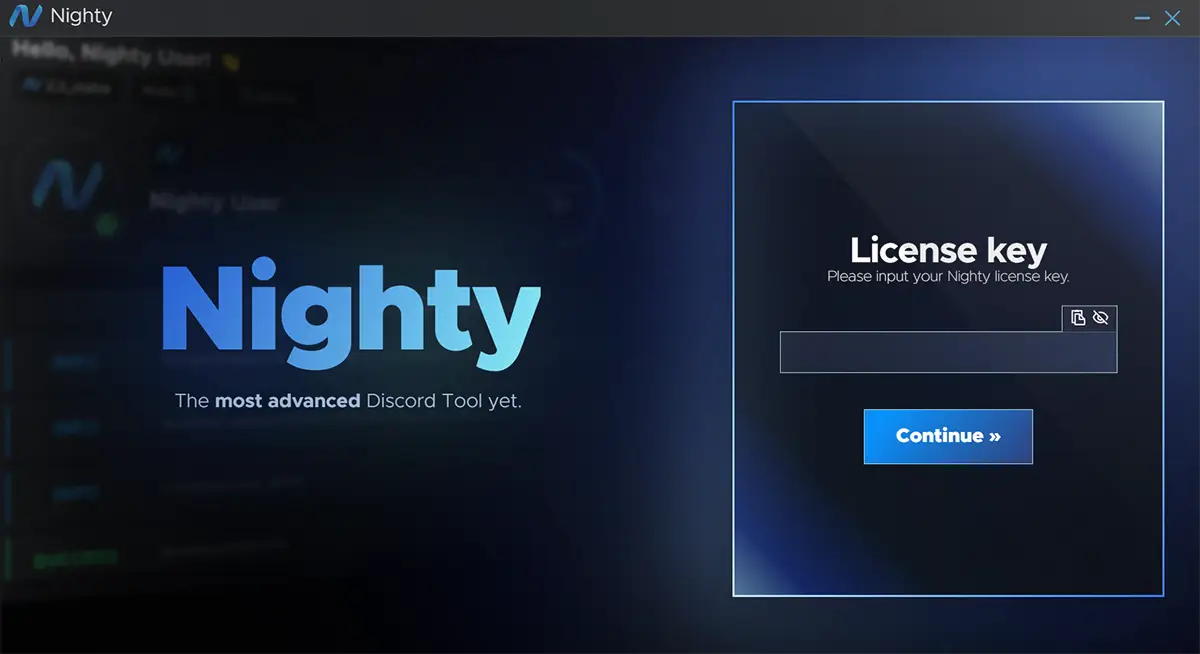
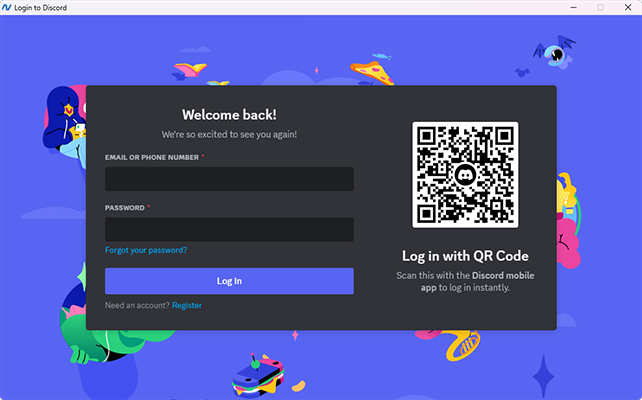
.png?alt=media&token=4883cb9a-edbd-4973-a3e9-d23ab4b71a71)
.png?alt=media&token=55159395-5cf9-413c-9ae6-80529a940335)
%20copy.png?alt=media&token=507dd14e-447b-46c6-8a19-f34bd966a26e)
%20aacopy.png?alt=media&token=3085c716-e1e2-4ac8-a3fa-545dd1c9e100)
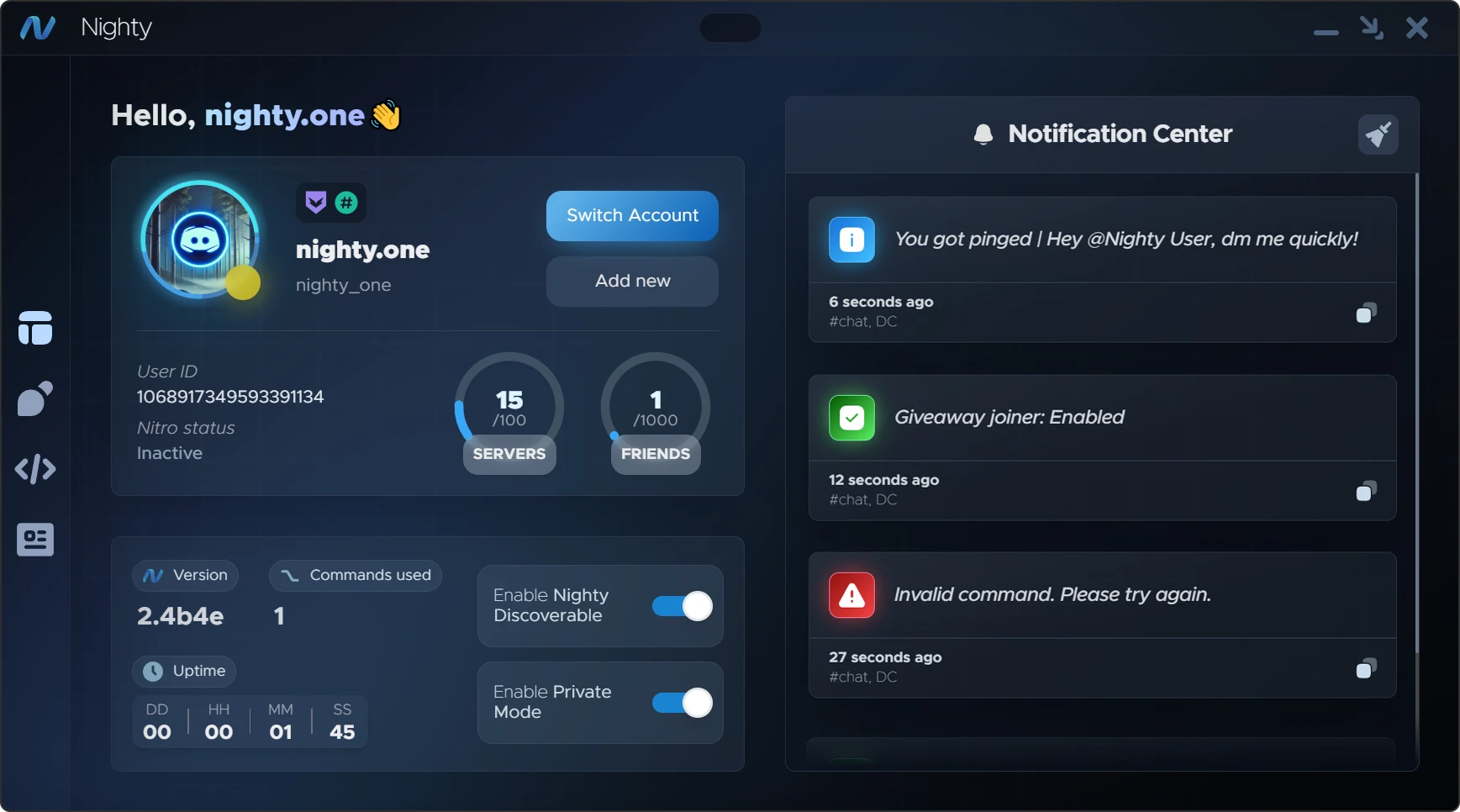


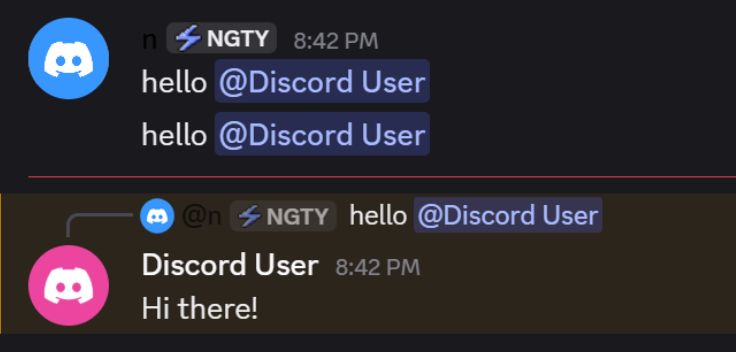


1.png?alt=media&token=3382ecee-680f-4290-8f16-4337da1fc743)
2.png?alt=media&token=b66f91bf-2eae-4ba8-b75b-8f56e5c7d45e)
3.png?alt=media&token=2e7d10a0-c896-4cf3-910b-7dbd25d1c610)
4.png?alt=media&token=5ded02a2-bb87-4173-a772-bfdc5cb8eae2)
5.png?alt=media&token=e95848b3-f8c2-4cdb-af54-410a9a1a64f4)
.png?alt=media&token=d974081e-b2b2-4ce8-9309-4a68ce75a913)
6.png?alt=media&token=a0e5c408-b8fa-40bd-b5cc-897bee91c997)
7.png?alt=media&token=729805f2-dac8-40be-ab28-8a225f52b4af)
8.png?alt=media&token=ba13fd64-b80c-4fb9-b3e4-3a44c6307220)
9.png?alt=media&token=74444008-f948-4241-8240-f787804d54b1)
10.png?alt=media&token=bdb3b0a0-7a27-4dda-bb9c-f4b5e53d21a6)
11.png?alt=media&token=82adfea7-c6f0-4cdd-815c-6df3c374d9ca)
12.png?alt=media&token=42774178-e15a-4310-93ef-6058b22c52a6)
13.png?alt=media&token=397fa8d1-4a04-42ca-ba5e-85555971dc91)
14.png?alt=media&token=d0fb0554-e88b-464d-897a-f182ba064f2a)
15.png?alt=media&token=e7e12cc2-f7a9-4708-9943-3bf93ab4be58)
16.png?alt=media&token=e8acaf0c-d9f3-490f-8b78-5d2daf9c57e5)
17.png?alt=media&token=67da827f-9cec-488c-917a-c5a146f4bd83)
18.png?alt=media&token=7ca216cd-7f70-4424-bf3b-cf887c61956e)
19.png?alt=media&token=6e4d30b7-6cf4-466e-a052-986ba4ef11fd)
20.png?alt=media&token=13b08582-c2c4-4d38-9b27-a8fdc6f4aa3d)
21.png?alt=media&token=3fe32c95-c536-460b-9863-d3d9c5f02259)
22.png?alt=media&token=e0e60cb3-916f-48c3-a945-0f37467afdc7)
23.png?alt=media&token=eaa6b05b-33fe-4741-a220-b5ef3178ccce)
24.png?alt=media&token=8b81163a-3e3d-460c-8d5e-61bf5d82d2a0)
25.png?alt=media&token=565cf2d9-61d8-4ea9-8e29-f670ffae15e8)
26.png?alt=media&token=71c75c83-85f5-4449-8864-c8dc8f987824)
27.png?alt=media&token=ae3e496e-a94f-4fbf-a77e-8acd2ffe96d0)
28.png?alt=media&token=b2418314-b5d6-4940-9ea3-572457d18611)
29.png?alt=media&token=4135b36b-6b0a-4db7-a708-78a63a1eae45)
30.png?alt=media&token=f850015d-f050-4da9-affd-d2327c66d834)
31.png?alt=media&token=8fa63476-ac14-4cee-a248-9761e81d7119)
32.png?alt=media&token=43215e31-ac45-4628-a57f-53f6e6d8e860)
33.png?alt=media&token=9a18a1cd-a491-46a4-abb4-b0e65e73419f)
34.png?alt=media&token=57aba2bc-b977-4836-8126-cae21868bf53)
36.png?alt=media&token=b82e437b-026b-4754-86df-3723886af82b)
37.png?alt=media&token=04f04a5e-5dca-4984-a5ea-c35d3d5a4eac)
38.png?alt=media&token=0c3f8873-492a-4244-a69c-43b23de1bd2b)
0.png?alt=media&token=d070c33e-f41b-4d71-b680-fecd1e143488)